
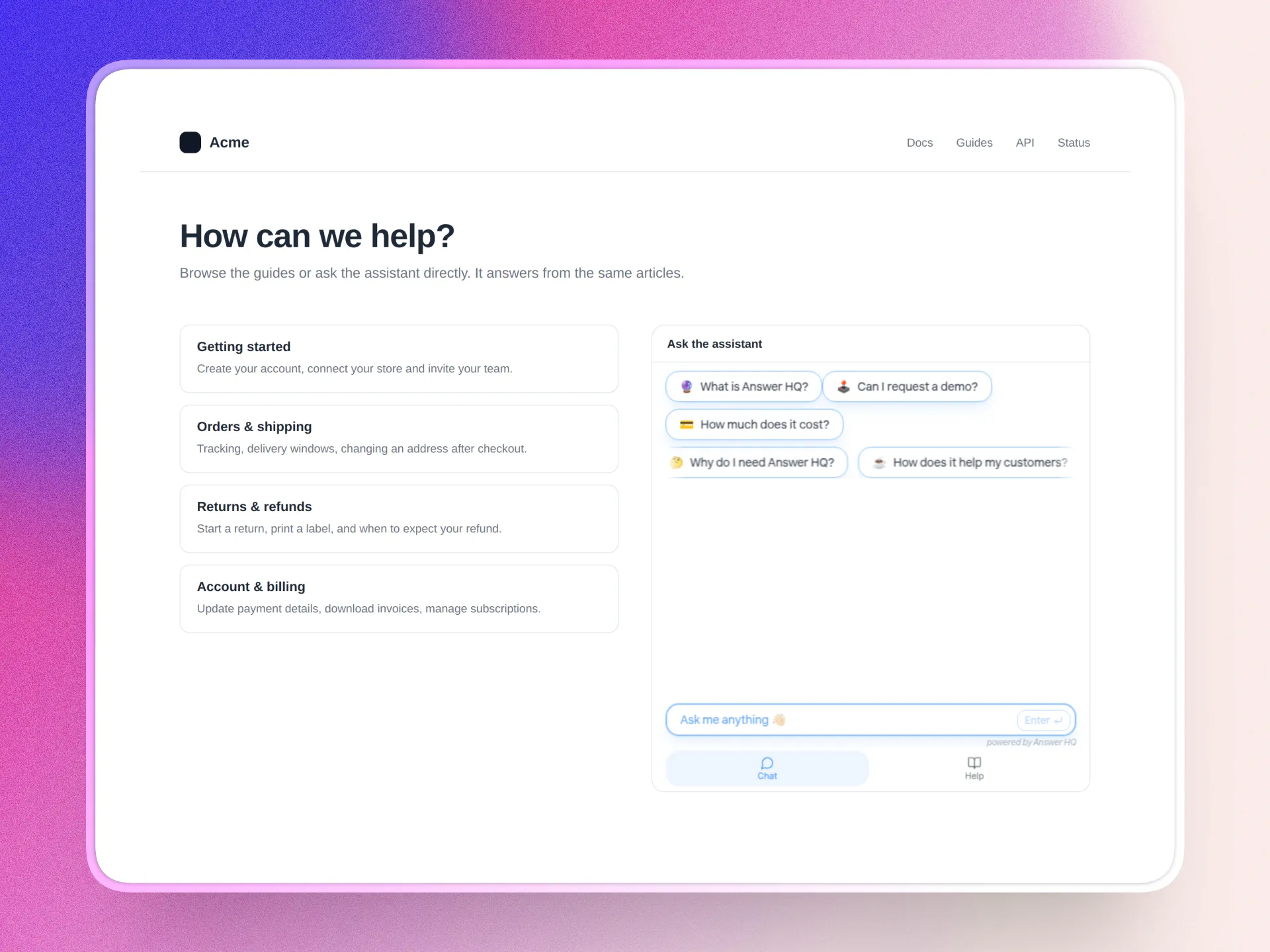
For a while now, customers have been asking me for more ways to let people search their knowledge base and get questions answered. Not just from a chat bubble in the corner, but as part of their docs. A help page where the assistant is the main thing on it, not a small widget floating over it.
Starting today, you can do exactly that. The Answer HQ assistant can now be embedded in any page as an iframe.
Same assistant, different frame
The embed is the same assistant your customers already know. Same knowledge base, same quick questions, same Help tab with your articles, same colors and corners you picked in the Theme tab. It just lives inside your page instead of on top of it.
A few things are different because they'd be redundant on a page you control. There's no close button and no widget header. The assistant opens straight to the conversation, and the composer stays centered when you give it a wide frame, so a 4:3 landscape block on a docs page looks intentional rather than stretched.
Pick a size, copy the code
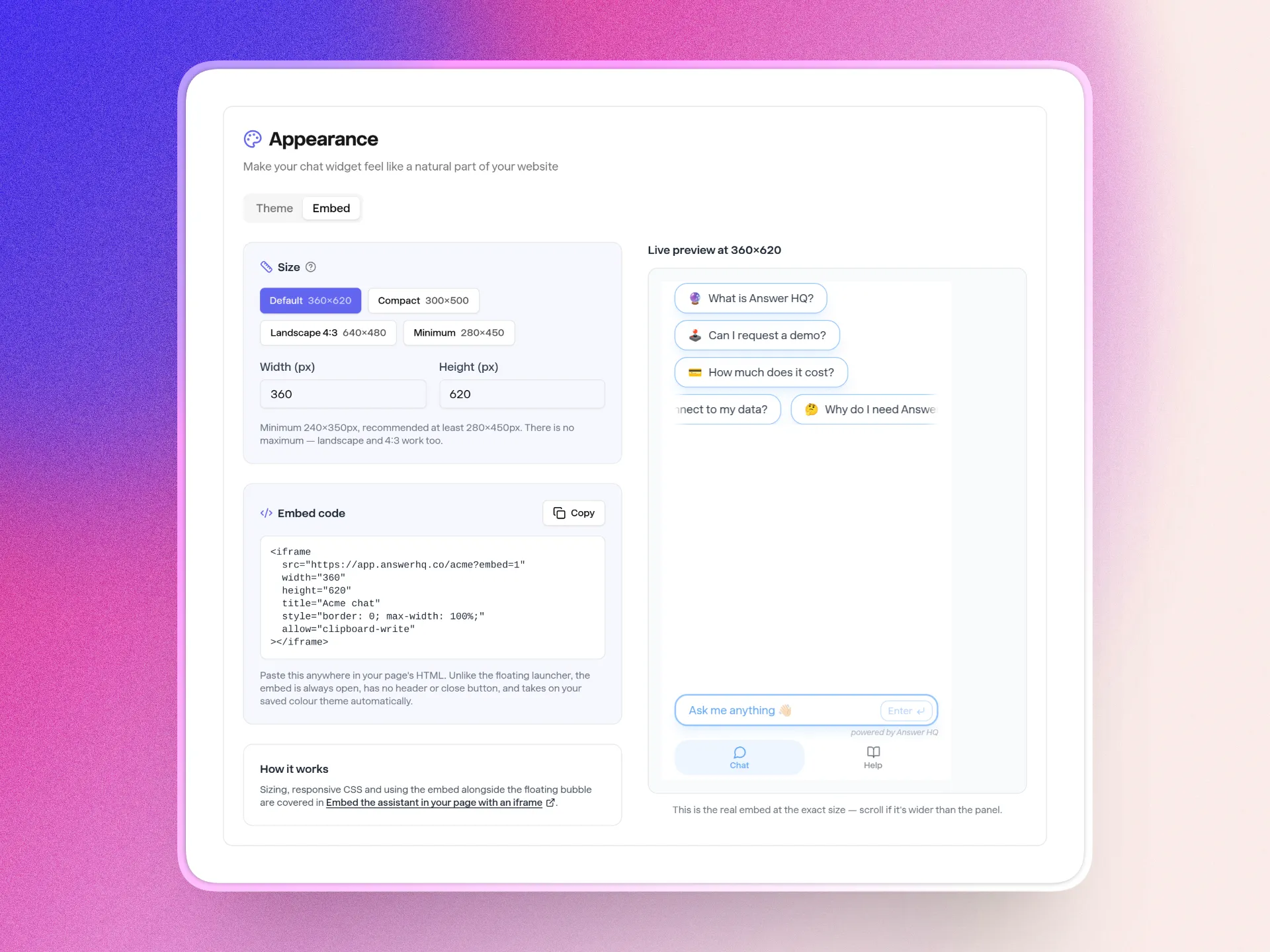
I added an Embed tab next to Theme under Appearance in the dashboard. It has a handful of size presets (default, compact, landscape 4:3, minimum), width and height fields if you want something else, and a live preview so you can see what your customers will see before you touch your site. The iframe code updates as you type. Copy it, paste it into your page, done.
The floating bubble still works the way it always has. You can run both: the bubble on your store and the embed on your help page, or just one of them.
A note on size
The assistant is fully fluid, so it fills whatever width and height you give the iframe. I'd keep it at least 280 by 450 pixels for a comfortable experience. It technically works down to 240 by 350, but at that point only a couple of lines of conversation are visible above the composer. There is no upper limit.
Setup details, responsive CSS and how to use the embed alongside the bubble are in the help article.
Available today
The Embed tab is live for every plan. Open Appearance, click Embed, and put your assistant where your customers are already looking.