
The worst support problems I've seen weren't big ones. They were small ones that ran for a week because nobody was reading every conversation. A shipping label glitch, a discount code that expired early, a checkout page that broke on one browser. Three customers mention it on Monday, and you find out on Friday when someone finally emails.
Alerts fix that. You tell Answer HQ what you want to hear about, and it watches your conversations and posts to Slack, or to your phone on WhatsApp, the moment it happens, quoting what customers actually said.
Alerts started life two weeks ago as a small box inside the Slack bot. Today they get their own page, a new kind of alert, and a much simpler way to set one up.
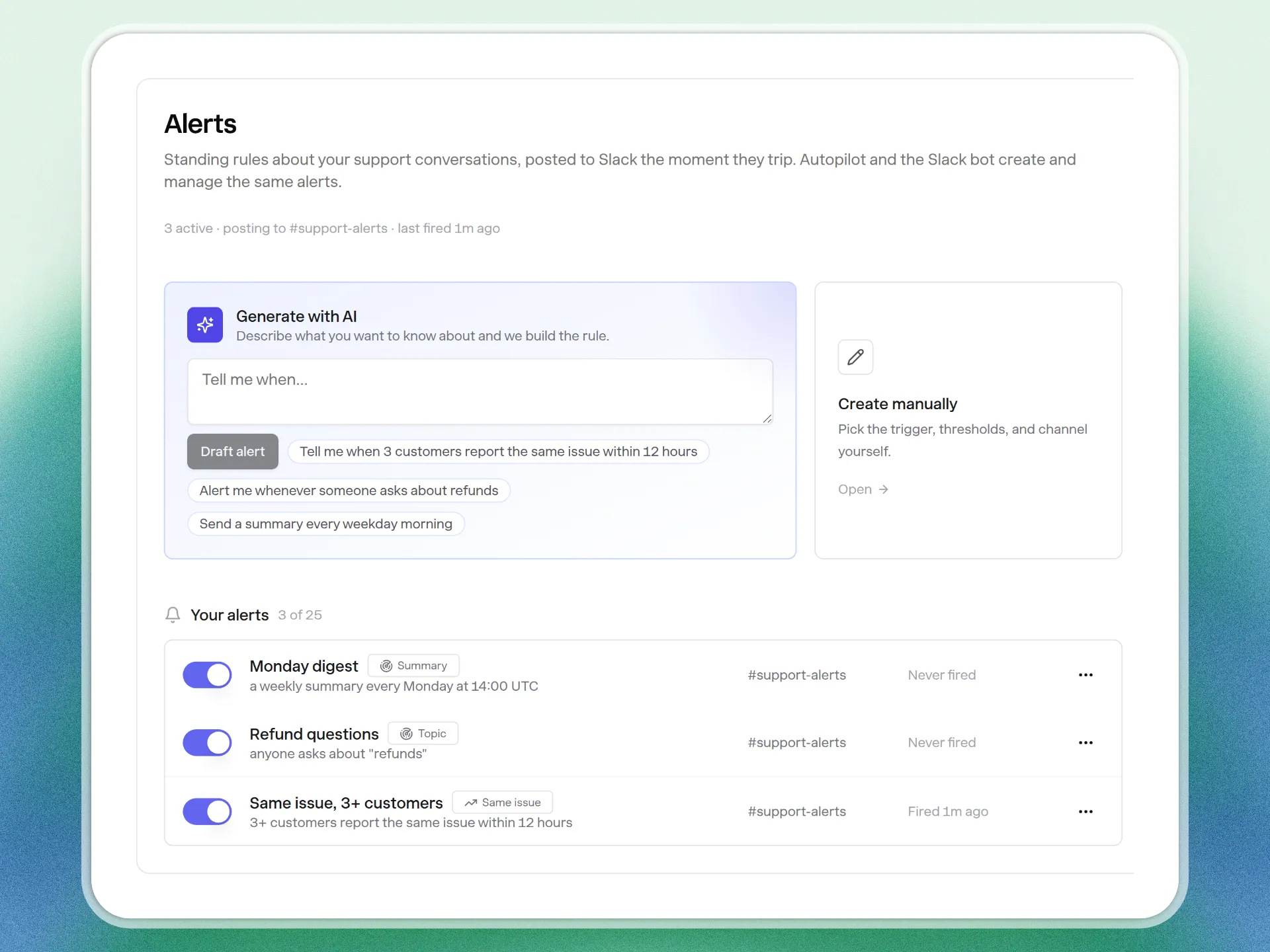
Say it in a sentence
Open Alerts in your dashboard and type what you want to know about:
Tell me when 3 or more customers ask about shipping delays in a day
Answer HQ turns that into a rule and shows it to you before anything is saved: who it watches, how many customers, in what window, which channel. Change a number if you like, then hit Create. If you'd rather set it up by hand, the same form is right there.
One thing I made sure of: before it saves, it checks whether you already have that alert, or one very like it. Two alerts pinging the same channel about the same thing is worse than none.
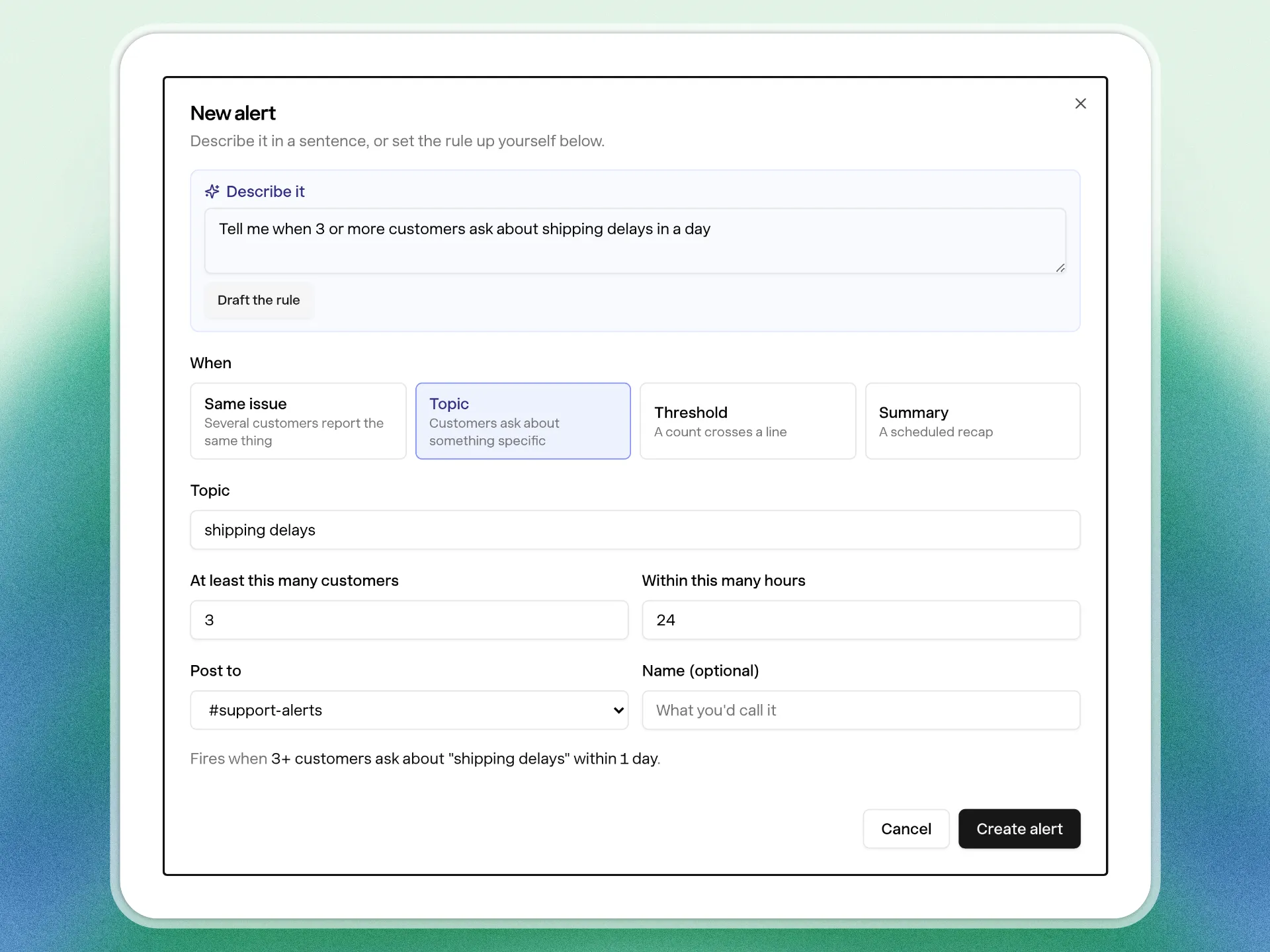
Four things an alert can watch
- Several customers report the same issue. Questions are grouped by meaning, the same way Insights groups them into Topics, so "where's my order" and "tracking hasn't updated" count as one problem.
- Customers ask about a specific topic. This one's new. Name the topic ("refunds", "order tracking") and you're told when people ask about it. It matches by meaning, not exact words.
- A count crosses a line. More than 50 chats in a day, or more than 5 unhappy customers in an hour.
- A daily or weekly summary. A recap every weekday morning, or every Monday.
The check runs every 15 minutes against your real conversations, and no AI is involved when an alert fires. Your sentence is turned into a precise rule once, at creation. From then on it's a plain count, so it costs nothing to run and never guesses.
What lands in Slack
The message quotes the customer questions that set it off, so you know in one glance whether it's a real problem or a coincidence. Two buttons take you further: View in Insights opens the whole group of conversations, and Draft help article starts an article that answers the question, pre-filled with what customers asked.
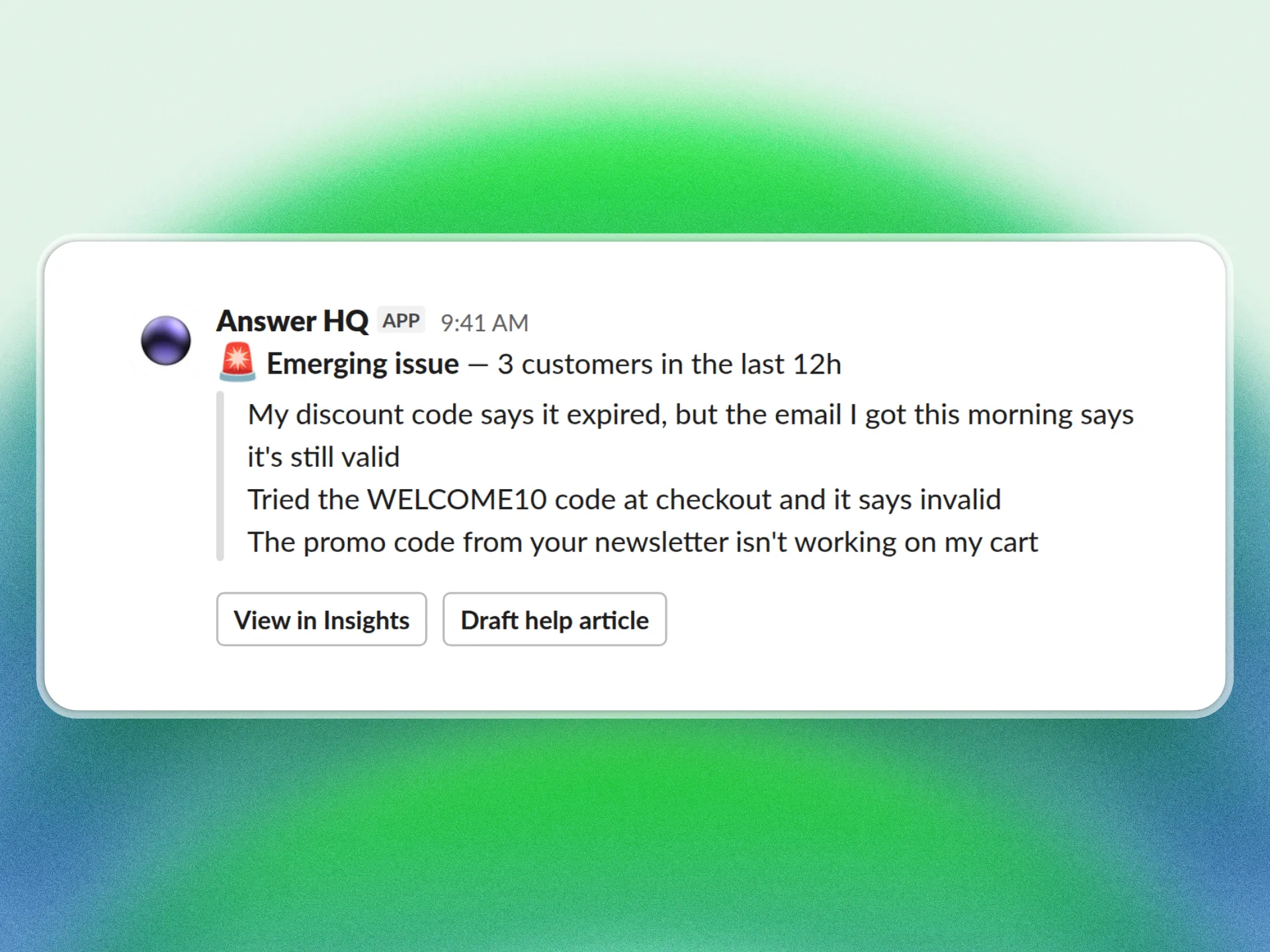
On WhatsApp the same alert arrives as a message from the Answer HQ number, with the questions and a link into Insights. Pick a teammate who has linked their phone as the destination, or just tell Answer HQ on WhatsApp "let me know when 2+ customers report the same issue in 12 hours" and it comes to you.
Back on the Alerts page, every alert shows when it last fired. Open one and you get its full history: every time it went off, the questions behind each one, and a link back to the Slack message.
Manage them from wherever you are
You don't have to open the dashboard to set one up. Tell the Slack bot "alert #support when 2 customers ask about refund timing in a day" and it finds the channel, checks for duplicates, and posts an approval card. The alert only exists once someone you've authorized presses Approve. Pausing, changing or deleting one asks first too. Autopilot works the same way from the dashboard.
Each workspace can have up to 25 alerts. Owners and admins create and change them; everyone on the team can see them.
Getting started
Alerts are available on the Pro plan and above. They post to a Slack channel or to a teammate's WhatsApp, so connect Slack or link your phone first from your Connectors page if you haven't. Then open Alerts, type a sentence, and you're done. If you're new to Answer HQ, start a free trial and set your first alert up on day one.
Questions? hello@answerhq.co, or ask the widget. It's powered by Answer HQ.